
Overview - Rons Markdown Edit
What is Rons Markdown Edit?
Rons Markdown Edit is a Windows desktop editor for Markdown — plain-text files that use simple punctuation for headings, lists, links, and the rest. It is aimed at people who write documentation, notes, blog drafts, or site content and want a dedicated workspace rather than a generic text editor with no preview.
The application keeps the Markdown source in the centre of the workflow and
renders it as HTML when you need to see how the finished page will read.
Folder-based Locations tie multiple files together, which suits
documentation trees, wikis checked out from git, or any project where one .md
file is never quite enough.
Getting Started
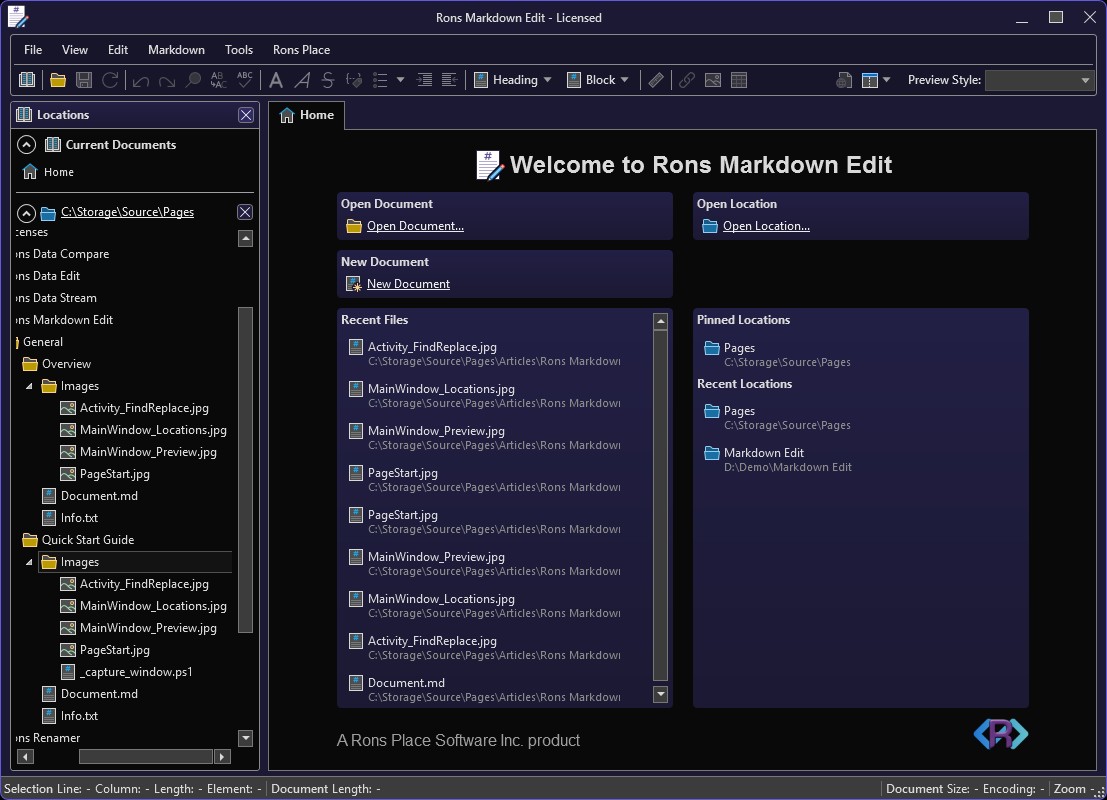
When you launch the application, the Start Page offers Open Document..., New Document, and Open Location..., along with pinned and recent files and folders. That is usually enough to open an existing readme or point the editor at an entire docs directory in one step.
For a short, hands-on walkthrough of the same ideas, see the Rons Markdown Edit Quick Start Guide.
The Main Window
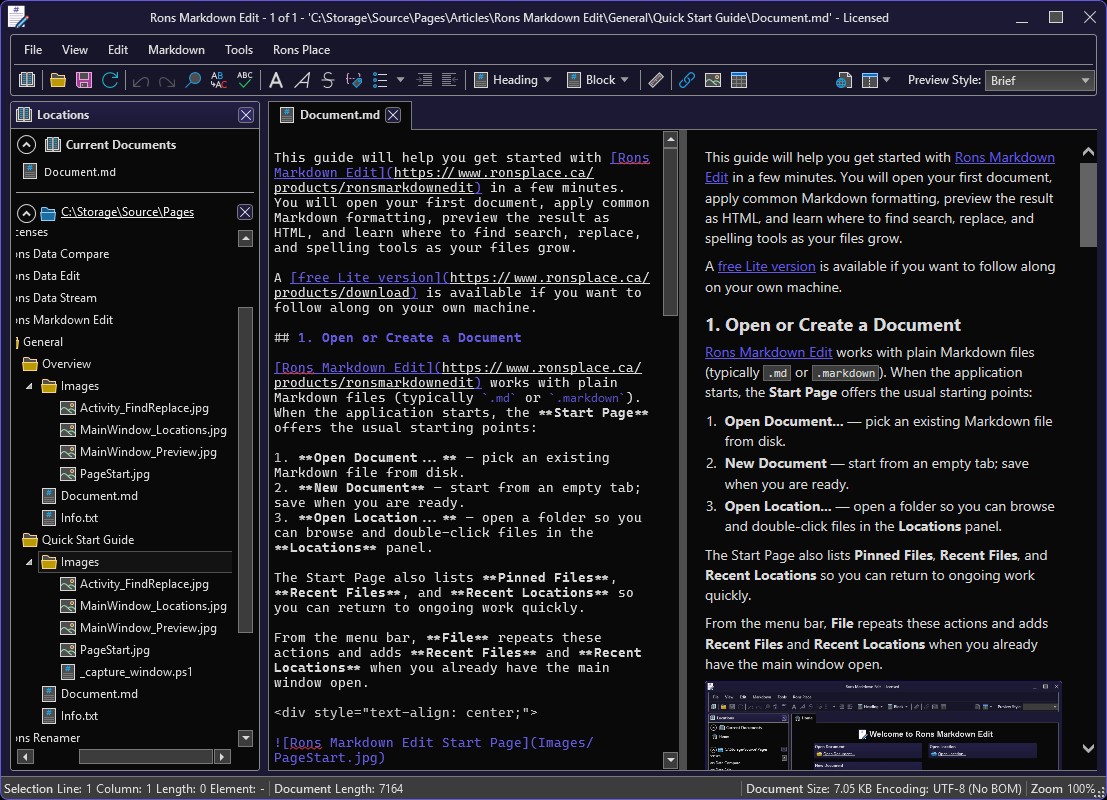
With one or more documents open, the window combines familiar pieces into a single layout:
- Document tabs for every open Markdown file (and separate tabs for images opened from a location).
- Toolbar and Markdown menu for structure and inline formatting without memorising every syntax variant.
- Locations on the left — a folder tree plus Current Documents when a location is open.
- Detail panel on the right for Document Properties and a searchable Command List.
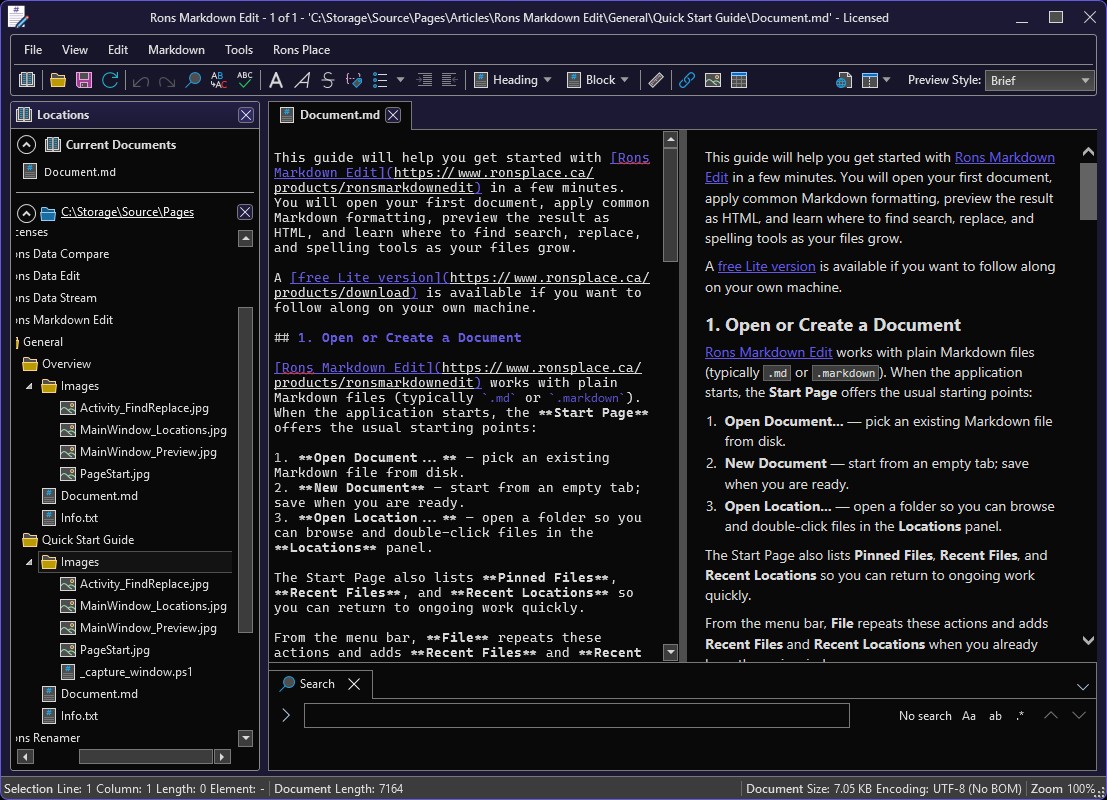
- Activity panel at the bottom for Find, Replace, and Spelling when those tools are active.
Writing and Formatting Markdown
You can type Markdown directly or use commands that insert and adjust the syntax for you. Headings, emphasis, lists (including task lists), quotes, code spans and code blocks, horizontal rules, links, images, and tables are all supported from the Markdown menu and toolbar.
Dedicated editors for Link, Image, and Table reduce the guesswork for URLs, alt text, and column layout. The context menu repeats the Markdown submenu and offers Paste as Markdown when the clipboard holds HTML from a browser or another program.
Under Edit, Format tidies the current selection, and Format Convert rewrites the document through HTML — useful when pasted content arrived with untidy markup.
HTML Preview
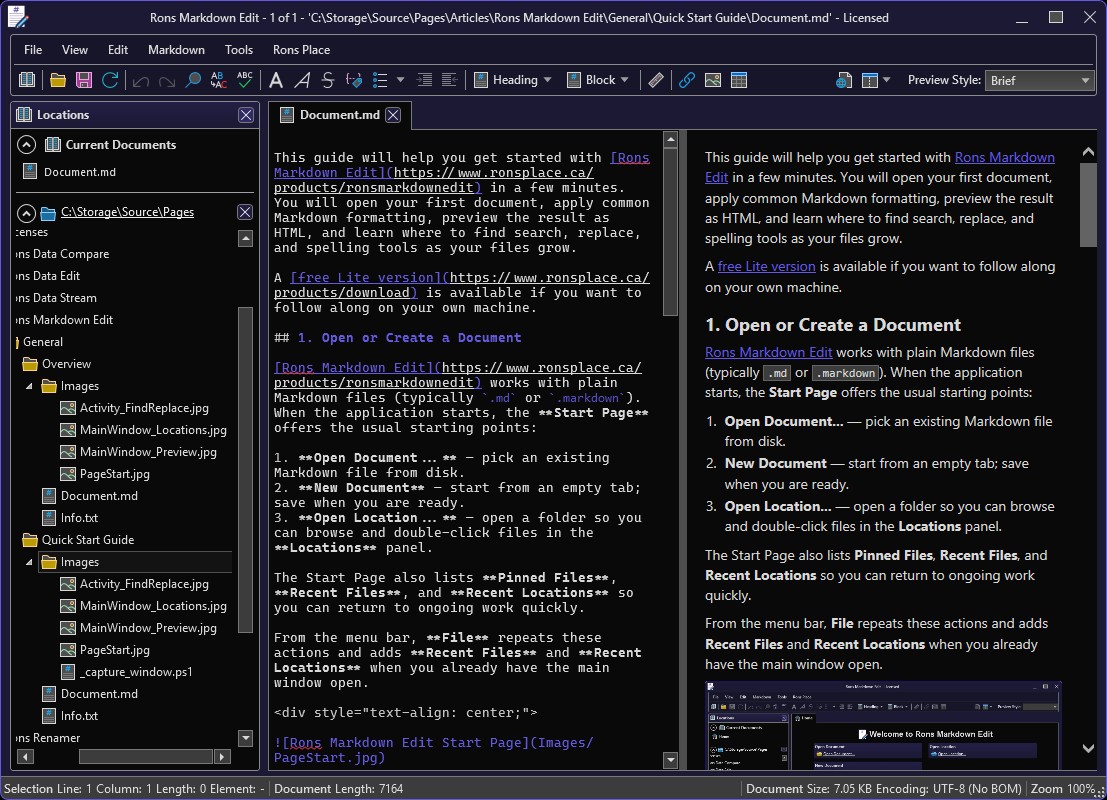
Markdown remains the source of truth; the preview shows approximately how the rendered HTML will appear. Toggle HTML Preview from the toolbar or View menu, choose Vertical Split or Horizontal Split, and pick a Preview Style from the drop-down to change the theme (for example a GitHub-like layout or a simpler brief style).
The preview updates as you edit, so you can catch broken lists or headings without running a separate build step for every small change.
Working with Folders (Locations)
Documentation and note-taking rarely stop at a single file. Open
Location... attaches a folder to the session; in Locations
you expand directories and double-click .md files to open them in
new tabs. Context menu actions cover creating folders or documents, renaming,
refreshing the tree, copying paths, and opening a folder in Windows Explorer.
Pinned locations on the Start Page keep a favourite repository or notes directory one click away.
Find, Replace, and Spelling
Search and proofreading live in the Activity panel. Find and Replace support the usual options for navigating long documents; Spelling lists issues and lets you jump to each occurrence. Tools → Enable Background Spell Check underlines mistakes while you type, which you can turn off again when it is not wanted.
Document Properties and Options
Document Properties (from File or the detail panel) shows encoding, line endings, and path information — important when a file moved between systems or editors. Tools → Options covers appearance, editor font, format defaults, and related settings; Tools → Edit Commands lets you review or change keyboard shortcuts.
File → Refresh reloads a file from disk when another tool has changed it underneath you — a small courtesy that saves arguments with your version control client.
Images and Related Files
Opening an image from a Location shows a dedicated Image tab with viewing and property details, which helps when figures sit beside the Markdown that references them. For images inside Markdown, Markdown → Image (or the toolbar) writes link and alt text consistently.
Conclusion
This article outlines the main areas of Rons Markdown Edit: editing and formatting Markdown, live HTML preview, folder-based navigation, and the tools that keep larger documents manageable.
Most people open a file or location, turn on preview once, and then settle into writing. When you want step-by-step instructions for that first session, continue with the Quick Start Guide. A free Lite version is available on the product download page if you would like to try the application on your own machine.
Related Information
Rons Markdown Edit
General


